Manual / Guide 10
Users and blocking
The Users page has test customers for the web chat, and the list of real customers with a Block button.
1. Add a test customer
Test customers can log in to the web chat on this computer and order like a real customer.
- Open Users.
- Under Add a test customer, type a username (for example
priya), a password (for exampledemo123) and a display name (for examplePriya). - Click Add. The test customer appears in the list above.
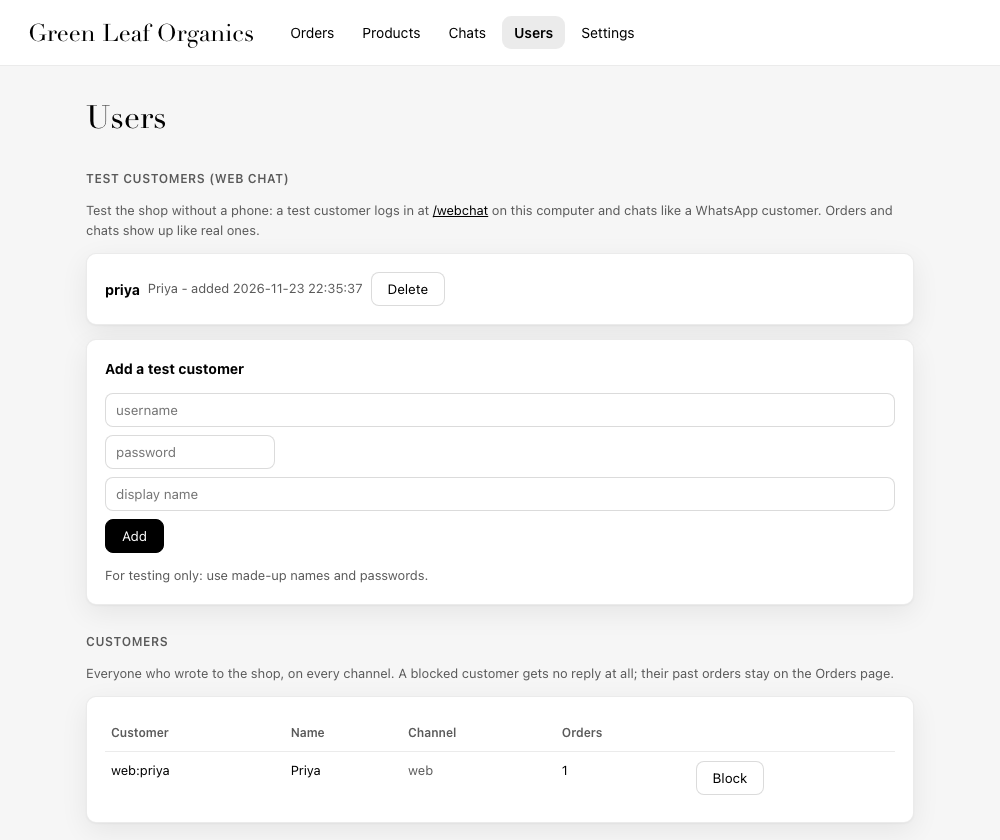
Use made-up names and passwords. These are for testing only. Delete removes a test customer.
To chat as that customer, see Test without a phone.
2. Block a customer
The Customers list shows everyone who wrote to the shop, on every channel: WhatsApp numbers, Telegram users and web chat test customers.
- Find the customer in the list.
- Click Block. The row shows blocked.
A blocked customer gets no reply at all, on any channel. Their past orders stay on the Orders page.
3. Unblock
Click Unblock on that row. The shop answers them again from their next message.
If it goes wrong
- The customer is not in the list. They appear after their first message reaches the shop.
- A test customer cannot log in. Check the username and password, or delete and add them again. Test customers are removed by Delete this shop and start a new one.