Manual / Guide 3
First setup
Four short steps in the browser: your shop, what you sell, how you get paid, and where customers reach you. About five minutes.
The steps are shown as buttons at the top of the page: 1. Shop, 2. Products (or 2. Services), 3. Payment, 4. Chat channels. You can go back to a step you finished by clicking it.
Step 1: Your shop
- Shop name. Type the name customers should see, for example
Green Leaf Organics. It appears in replies, on invoices and on receipts. - Currency. Type a currency code such as
USD,EUR,GBPorINR. It is printed next to every price. If you leave it empty, INR is used. - What do you sell? Pick Products (things you sell and deliver; customers order items and pick a delivery slot) or Services (appointments people book, such as a haircut, a class or a consultation).
- Click Next.
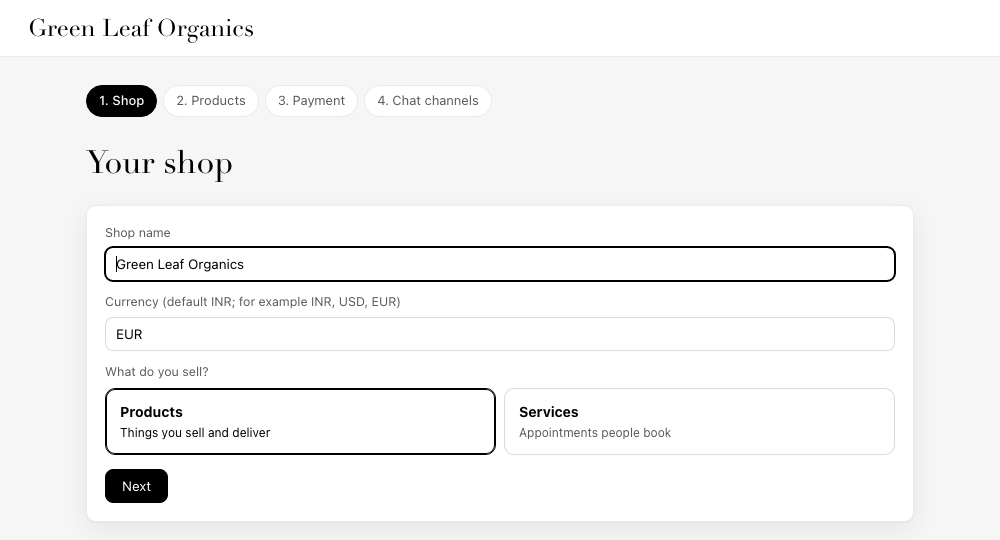
A shop sells products or services, not both. You can change this later in Settings.
Step 2: Products or services
- Products: you upload one Excel file with your products. See Add products from Excel for the exact columns. Not ready yet? Click Download the example file, upload it as it is, and replace it later.
- Services: you pick your kind of business and set your hours. See Services and bookings.
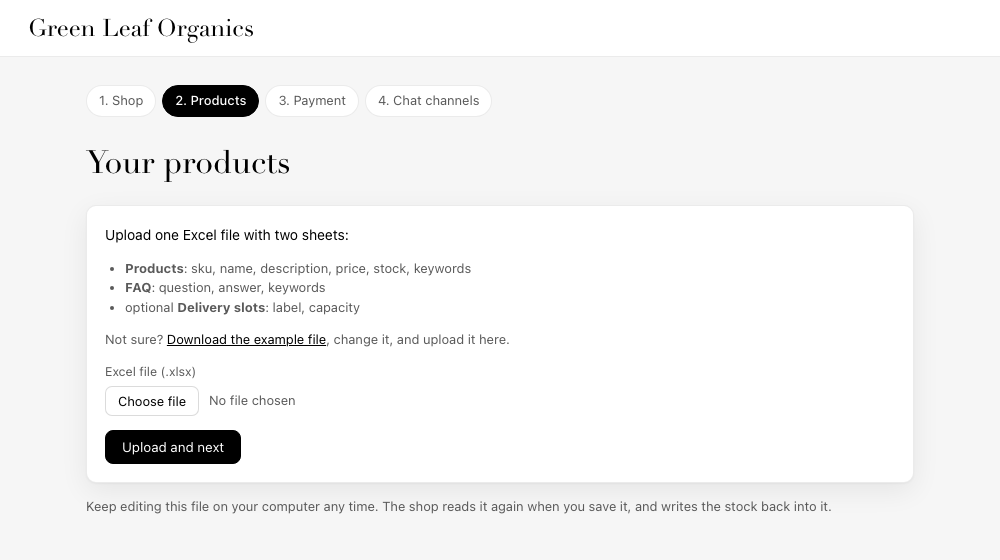
After the upload, the next page says how many products and questions were read, and where your file is kept.
Step 3: How customers pay you
Pick one way to be paid now. You can add more later.
- Click one of the four cards: UPI, QR code image, Payment link or Bank transfer. Only the field for that card is shown.
- Fill it in, for example a PayPal or Stripe link for Payment link.
- Click Next, or Skip for now if you want to do this later.
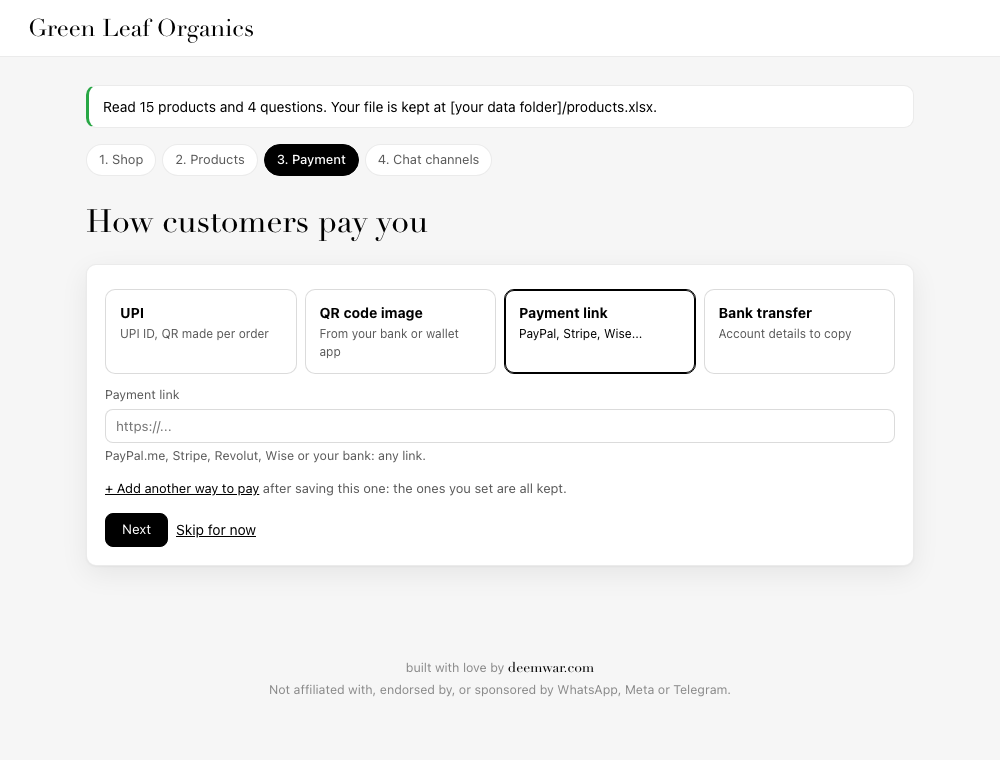
The details of each method are in Payment methods.
Step 4: Chat channels
Here you connect WhatsApp, Telegram, or both. The web chat for test customers is always on, so you can finish without connecting anything and test first.
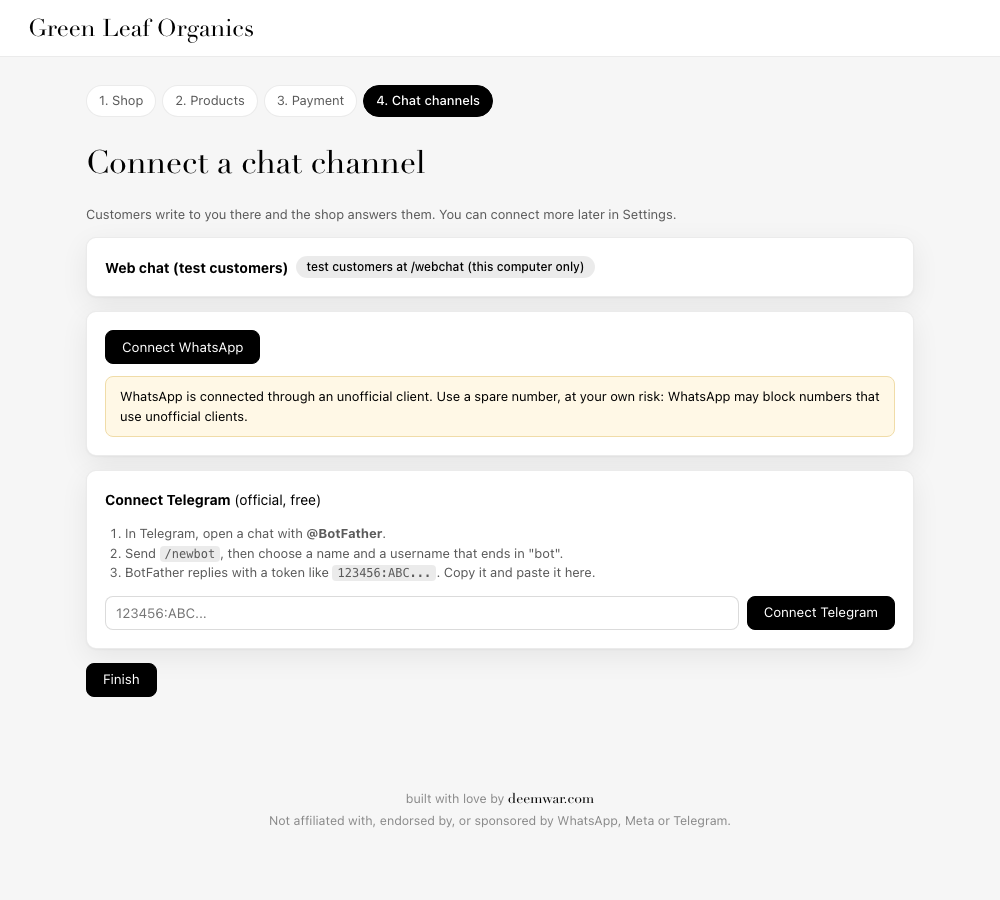
- WhatsApp: see Connect WhatsApp.
- Telegram: see Connect Telegram.
Click Finish. The Orders page opens with "Your shop is ready. New orders show up here."
What you should see after setup
A menu at the top of every page: Orders, Products (or Calendar and Services for a services shop), Chats, Users and Settings. Everything you chose in setup can be changed in Settings.
If it goes wrong
- The upload says a row is wrong. The message names the sheet and row, for example "Products row 4: price "abc" is not a number". Fix that cell in Excel, save, and upload again.
- I picked the wrong type (products or services). Change What do you sell? in Settings and click Save.
- I want to start again from step 1. Use Delete this shop and start a new one in Start over.