Manual / Guide 6
Payment methods
OwnShop AI never touches money. It sends your payment details with each order, and you click Payment received when the money is there.
The four ways to be paid
| Method | What you enter | What the customer gets |
|---|---|---|
| Payment link | A link that starts with https://, for example from PayPal.me, Stripe, Revolut, Wise or your bank. | The link with the amount to pay and the order number. |
| QR code image | A .png or .jpg of the QR code from your bank or wallet app (for example PayNow, PromptPay, Pix, GiroCode). | Your QR image. |
| Bank transfer | Account details as text, for example bank, account name and IBAN. | The text to copy, with the order number to put in the reference. |
| UPI | A UPI ID. Optionally a different name under change name. | A UPI QR code made for that order, with the amount and order number filled in. |
When the currency is INR, setup suggests UPI first; for other currencies it suggests a payment link. You can set several methods; the customer gets all of them.
1. Set the first method in setup
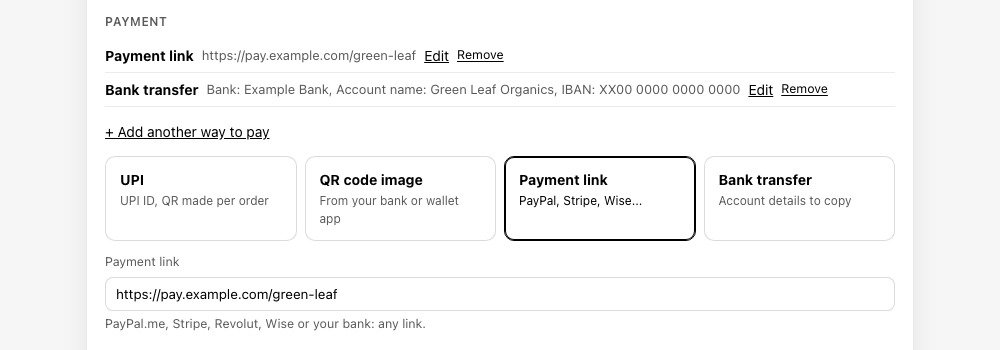
- On setup step 3, click the card for your method.
- Fill in the field that appears.
- Click Next. + Add another way to pay after saving keeps the one you set and lets you add the next.
2. Add, change or remove methods later
- Open Settings and scroll to Payment.
- Every method you set is listed with Edit and Remove.
- + Add another way to pay picks a method you have not set yet.
- Fill in the field and click Save at the bottom of the form.
3. What the customer sees
After the customer confirms the order, the shop sends the invoice and a message like:
"Green Leaf Organics: please pay EUR 19.00 at https://pay.example.com/green-leaf. Bank transfer: ... Put order 1042 in the payment note or reference."
4. Mark the order paid
- Check your bank or wallet app. OwnShop AI cannot see it.
- On Orders, click Payment received on that order.
- The shop marks the invoice paid and sends the customer a receipt with a thank-you message.
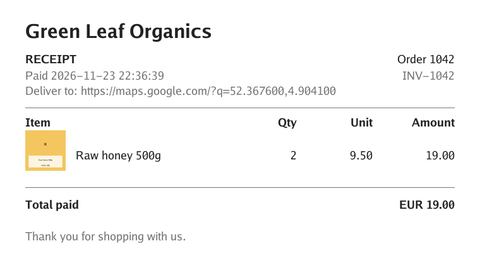
Then move the order on with Packed, Shipped and Delivered. See Daily use.
If it goes wrong
- "the payment link must start with https://": paste the full link, including
https://. - The QR image does not upload. Use a
.pngor.jpgfile. - I clicked Payment received by mistake. There is no undo for this step. Send the customer a short note from the order's reply box.