Manual / Guide 12
Start over
Two ways to start fresh: clear the test orders and chats and keep the shop, or delete the whole shop and set up a new one. Both save a backup first.
Find both in Settings under Start over, or click Start over at the bottom of any page.

Clear test data
Use this after testing, before real customers come.
- Click Clear test data.
- Read what it deletes: every order, customer, chat message, hand-off, booking and blocked slot, and the invoice and receipt images. Order numbers start again at 1042.
- Type the shop name, or
CLEAR, in the box. - Click Clear test data.
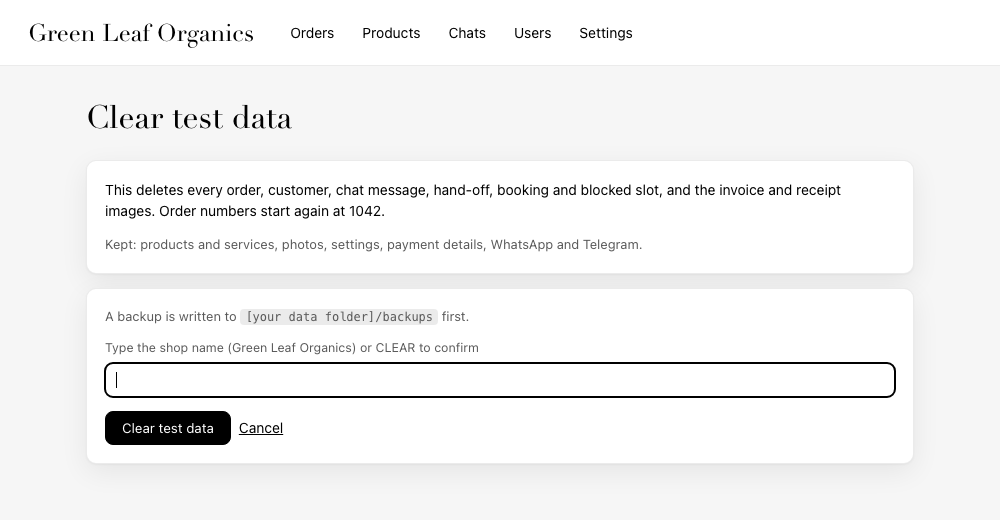
Kept: products and services, photos, settings, payment details, WhatsApp and Telegram. Test customers for the web chat are kept too.
Delete this shop and start a new one
Use this to set up a different shop from step 1.
- Click Delete this shop and start a new one.
- Read what it deletes: orders, customers, chats, bookings, products and services, photos, the payment QR and all settings, including the test customers.
- Leave Also disconnect WhatsApp and Telegram unticked to keep them connected, or tick it to disconnect them.
- Type the shop name, or
CLEAR, and click Delete this shop. - Setup step 1 opens.
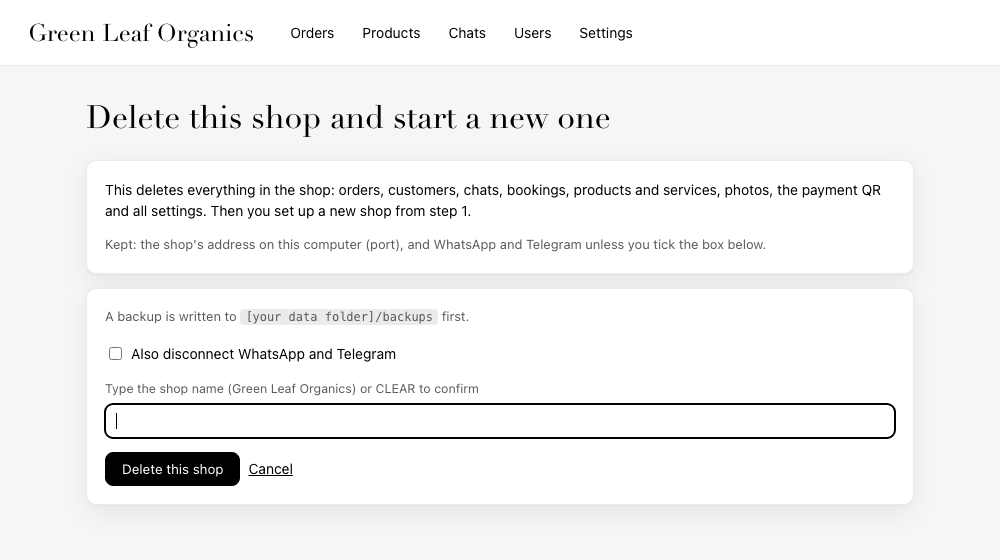
Kept: the shop's address on this computer (the port), and WhatsApp and Telegram unless you ticked the box.
The backups folder
Before either action, the shop writes a backup to the backups folder inside your data folder, in a new folder named by date and time, for example backups\20261123-223712. It holds:
ownshop.db: the shop's database (orders, customers, chats, settings),products.xlsx: your products file.
Photos, invoice and receipt images are not in the backup. Copy the images folder yourself first if you need them.
The page says where the backup went, for example "Test orders, customers and chats are cleared. Backup: ...".
If it goes wrong
- "Nothing was changed: type the shop name or CLEAR to confirm." The text did not match. Type
CLEARin capitals, or the shop name exactly. - I need the old data back. The backup is a copy, not an undo button. Stop the shop, copy
ownshop.dbandproducts.xlsxfrom the backup folder back into the data folder, and start the shop again. Keep a copy of the current files first.