Manual / Guide 5
Services and bookings
For shops that sell time instead of goods: salons, tutors, clinics, repair visits, consultants. Customers book a day and time in chat, and you see every booking on the Calendar page.
1. Choose Services in setup
- On setup step 1, pick Services under What do you sell? and click Next.
- Pick your kind of business. Each one fills in a usual service, hours and slot length:
| Business type | Service it adds | Days and hours |
|---|---|---|
| Clinic / Doctor | Consultation, 30 min | Mon-Sat, 09:00-18:00 |
| Salon / Beauty | Haircut, 30 min | Mon-Sat, 09:00-18:00 |
| Tuition / Classes | Class, 60 min | Mon-Sat, 16:00-20:00 |
| Repair / Home service | Visit, 60 min | Mon-Sat, 09:00-18:00 |
| Consultant | Call, 30 min | Mon-Sat, 09:00-18:00 |
| Other | Appointment, 30 min | Mon-Sat, 09:00-18:00 |
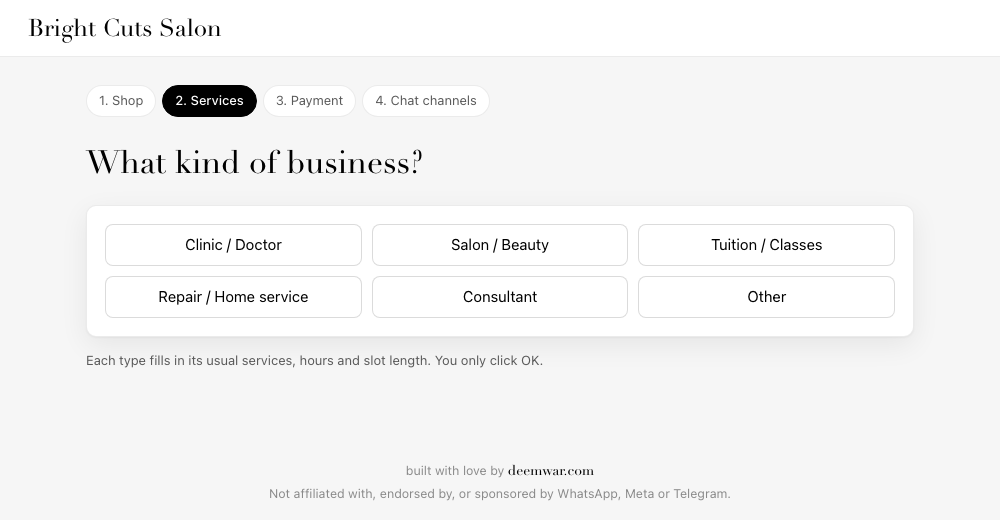
All types start with 30-minute slots and bookings up to 2 weeks ahead.
2. Check the defaults
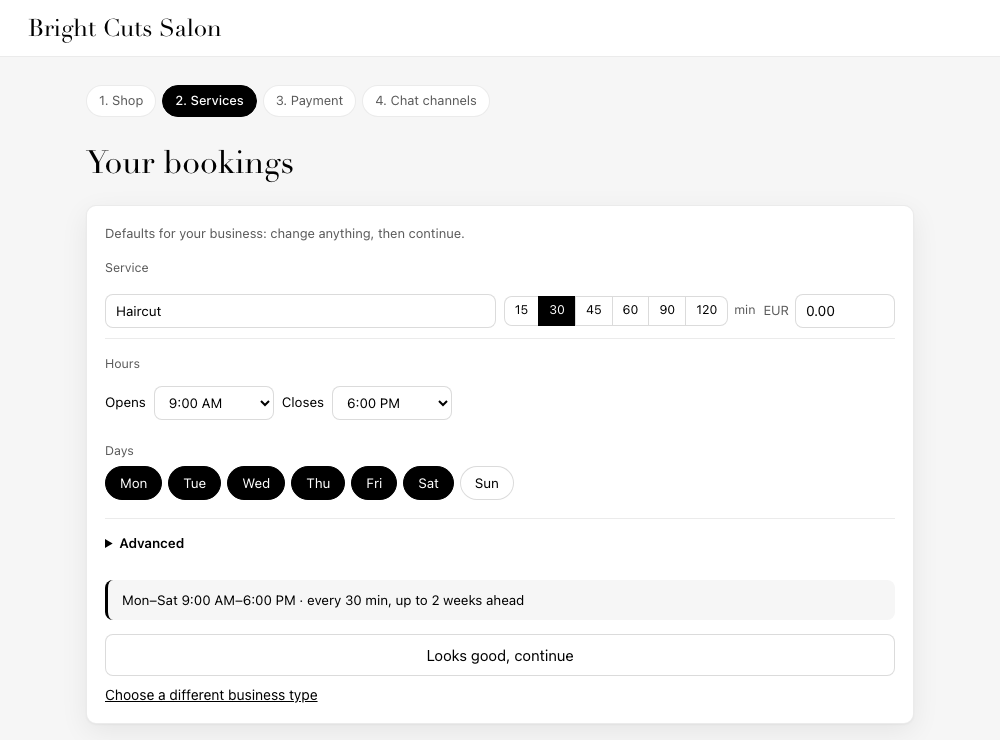
The Your bookings page shows what the type filled in. Change anything:
- Service: the name, the length (15 to 120 minutes) and the price. The price starts at 0, so type yours.
- Hours: Opens and Closes.
- Days: click a day to switch it on or off.
- The grey line at the bottom sums it up, for example "Mon-Sat 9:00 AM-6:00 PM · every 30 min, up to 2 weeks ahead".
- Click Looks good, continue. Picked the wrong type? Click Choose a different business type.
3. Advanced settings
Click Advanced on the same page (or in Settings later) for:
- More services: + Add service for each extra service, with its own length and price.
- Weekly hours: different hours per day, more than one time range a day (for example a lunch break), and Copy to all days.
- Date overrides: + Add a date override for a holiday (Unavailable all day) or special hours on one date.
- Slot length: how far apart the start times are.
- Customers can book up to: how far ahead.
- Minimum notice: how soon before a time it can still be booked.
- Time between bookings: a break after each booking.
- Most bookings a day: a daily limit.
4. How a customer books
The customer writes for example book Haircut. The shop then:
- lists the next days to pick from,
- lists the free times on that day,
- asks the customer to reply YES to confirm,
- sends the booking with the invoice and how to pay.
Customers can also ask for their booking status, or ask to cancel or move it; those requests come to you.
5. The Calendar page
Calendar shows one week. Use the arrows and Today to move between weeks.
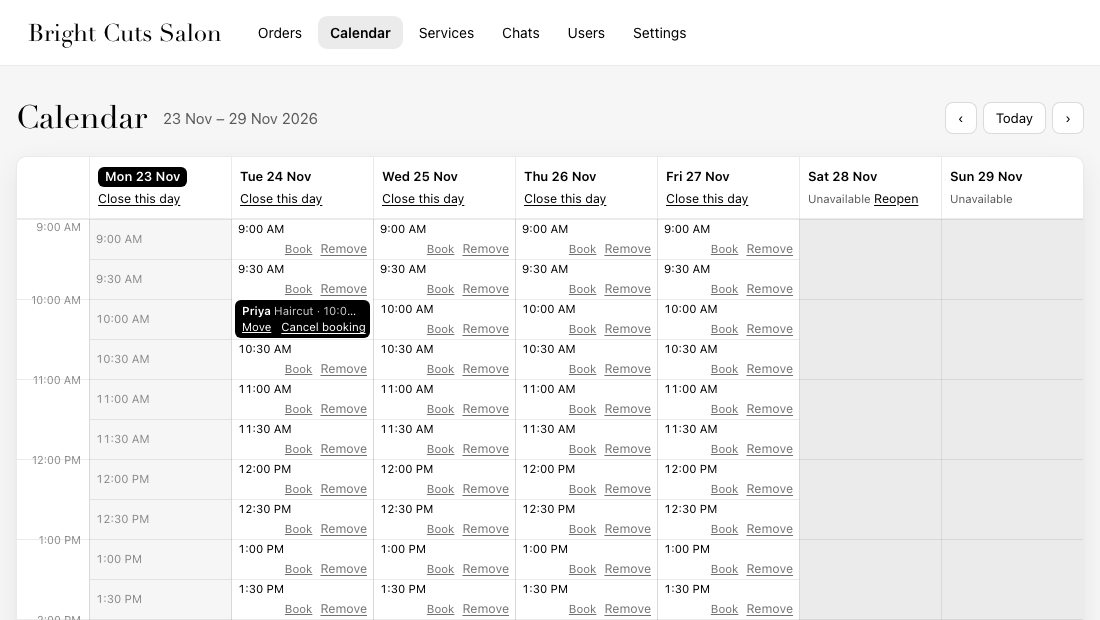
- Close a day: click Close this day under the date. The day shows Unavailable; click Reopen to undo.
- Remove one time: click Remove on a free time. It is taken off that date only and shows Removed; click Restore to undo.
- Move a booking: click Move on it, then Move here on a free time. Stop moving cancels.
- Cancel a booking: click Cancel booking. The time becomes free and the customer is told.
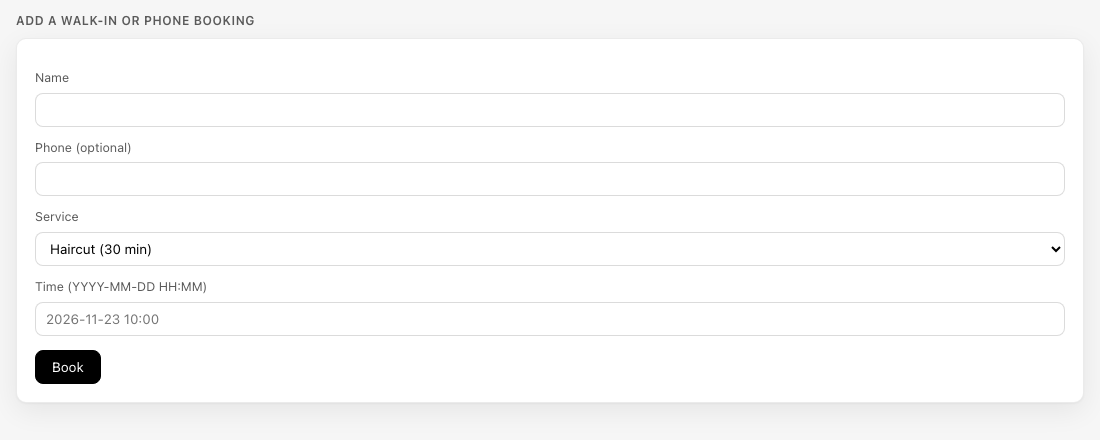
- Add a walk-in or phone booking: click Book on a free time, or fill in the form under the calendar (name, phone, service, time) and click Book.
Your usual hours stay in Settings > Bookings (services). Closing a day or removing a time only affects that date.
6. Bookings on the Orders page
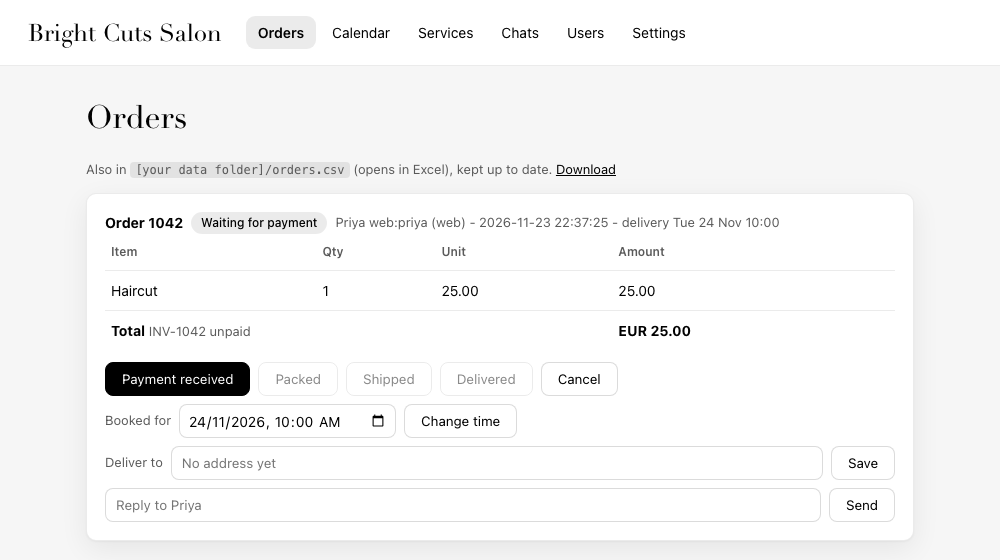
Every booking is also an order on Orders, with Booked for and Change time, and the same payment buttons as products.
If it goes wrong
- "Every day is unavailable: switch on at least one day." Switch on at least one day under Days or Weekly hours.
- Customers see no free times. Check the hours, Minimum notice, Most bookings a day, and whether the day is closed on the Calendar.
- The price shows 0. Type the price under Service, or on the Services page, and save.